Claude Install as App
Claude install as app. How to make Claude apps for work, using Claude artifacts. Claude apps compared to real Mac apps. A free app to set up Claude.
At its simplest, Claude is an AI chatbot that answers questions, which is how most people first encounter it. Claude also works with files on your computer, to get work done for any project. Claude can make a document, a spreadsheet, a web page to share, and now Claude makes its own apps to run on your Mac.
With "Install as app", you can prompt Claude to make an app on your Mac, with its own icon and window. A Claude app is not quite a real Mac app because it only runs when Claude is running and you can't distribute it to others like a real macOS application. This guide shows how to build a Claude app and explains how it differs from a real macOS app.
To install Claude itself, see the article Claude Desktop App for Mac. For what each plan costs, see Claude Pricing and Plans. Using AI on your Mac is one way to get more from your computer. See the guides for every Mac user.
Before you get started
Use my free app to set up the Claude desktop app so you can build Claude apps. It is a FREE Mac app that installs the Claude desktop app, then adds the important extras you might overlook, including starter projects, skills, and connectors. Here are all the details about the app before you download. Then:
Artifacts made by Claude
Conversations with Claude produce artifacts. An artifact can be a document, a web page, or a small interactive tool that opens beside the conversation. In Claude for Mac, "Install as app" turns an interactive artifact into an app that you open like any other Mac app. In this article I call it a "Claude app" because it isn't quite a macOS app.
"Install as app" works in Claude for Mac and Claude for Windows. It has been a feature of the Claude desktop app since late November 2026.
From chatbot to real Mac apps
Claude offers a continuum of capabilities. Even the simplest feature, the chatbot, reveals the powerful intelligence of Claude's LLMs (large language models). More advanced features use the same LLMs, but the desktop application serves as a harness to let the LLM interact with your computer. Here's the continuum:
- A chatbot - You ask a Claude LLM such as Haiku or Sonnet a question in a web browser or the Claude app, then read its answer. Anyone can do this on the free plan. Paid plans add the more powerful Opus LLM. Fable, the most powerful, comes with Max and Ultra, or with paid usage credits on Pro. With a chat conversation, you can upload and download files, but the LLM doesn't directly access files on your computer.
- Claude projects - A Claude project keeps files, instructions, and conversations together for ongoing work. On a paid plan, the desktop app can link a Claude project to a folder on your Mac, so the LLM reads and writes files there directly, without you uploading and downloading them. The article Claude Desktop App for Mac explains Claude projects. Claude skills can automate work you repeat, when you describe the task and then use a skills trigger phrase or command to repeat the remembered instructions.
- Claude apps - For work you repeat that requires interaction, you can ask the LLM to build a Claude app that gives you a menu, clickable buttons, and a display like any graphical application. It can be installed as an app in the Dock. It is just like real Mac applications, except Claude has to be running when you use it.
- Real Mac apps - When a tool is for people who don't use Claude, and must run without Claude, you need a real macOS app. You can prototype your idea and try it as a Claude app and then build it with an AI coding tool such as Claude Code or Codex.
Claude apps have two drawbacks that could lead you to build a real macOS app. A Claude app can't run without Claude. It is also typically vibe coded (built from ad hoc prompts, with no written plan or regression tests), so it can become troublesome and time-consuming to maintain. The section "Claude apps or Mac apps?" below compares the two.
What Claude apps are good for
Claude apps are useful as small tools for your own workflows, especially routine jobs you do the same way every day or every week. Here are a few examples:
- A personal dashboard - See today's calendar, unread email, and tasks in one window, from third-party apps you've connected to Claude, like Google Calendar or Gmail. Note that use with third-party connectors requires a paid plan.
- A team dashboard - On a Team plan, you could make an app that your colleagues use too, such as a shared view of a project's to-do items, or a sales report. Unlike a shared report web page, the dashboard can be interactive with menus and buttons.
- A menu bar timer - Anthropic's example prompts include "Make a Pomodoro timer that lives in my menu bar."
- A reminder - Another of Anthropic's prompts is "Make a small Mac app that reminds me to stretch every hour."
Paying for a Claude app
Each request a Claude app makes to Claude counts toward your plan's usage limits. For example, a dashboard that asks Claude to summarize your inbox every hour uses part of your plan's limit each time. The free plan allows limited use every 5 hours and every week, so an app that calls Claude often can use up the free plan's limit quickly. The article Claude Pricing and Plans compares the plans and their limits.
What you need
- Claude for Mac, version 6.28899.0 or later - To update, open
Claude > Check for Updates. To install Claude, download it from claude.com/download or use my free app. The article Claude Desktop App for Mac says which Macs it runs on. - Any Claude plan - "Install as app" works on the free plan, Pro, Max, Ultra, Team, and Enterprise. On the free plan, a Claude app can't use the apps you've connected to Claude, such as Google Calendar, or save data between sessions.
- An internet connection - You must be online and signed in to Claude to open a Claude app.
Build and install your first Claude app
You'll be surprised at how easy it is to build a Claude app. My first try was a knock-off of the classic cowsay terminal program. It is a cow that says whatever you type.
- In the Claude desktop app, describe the app you want, in a chat (on any plan) or in a Claude Code session (on a paid plan). Here's the prompt I used:
I'd like to try the "Install as app" feature. Let's make an interactive graphical app that allows us to type a message and see an ASCII text display of a cow saying the message.
- Claude builds the app and opens it as an artifact beside the chat.
- Try out the artifact. Ask Claude for any changes.
- Open the artifact in the main Claude window.
- Open the artifact's title menu and choose
Install as app. You can also right-click the artifact, or openShare, and chooseInstall as app. - Click
Installto confirm. - The app opens in its own window. Answer permission prompts if they appear (the section "Claude app permissions" explains each one).
Here's a screenshot of the Claude app, "Cow Says", in its own window. Like a contractor eager to impress, Claude exceeded my expectations, adding features I didn't request: Say or Think, a mood, the line width, and a Copy text button.
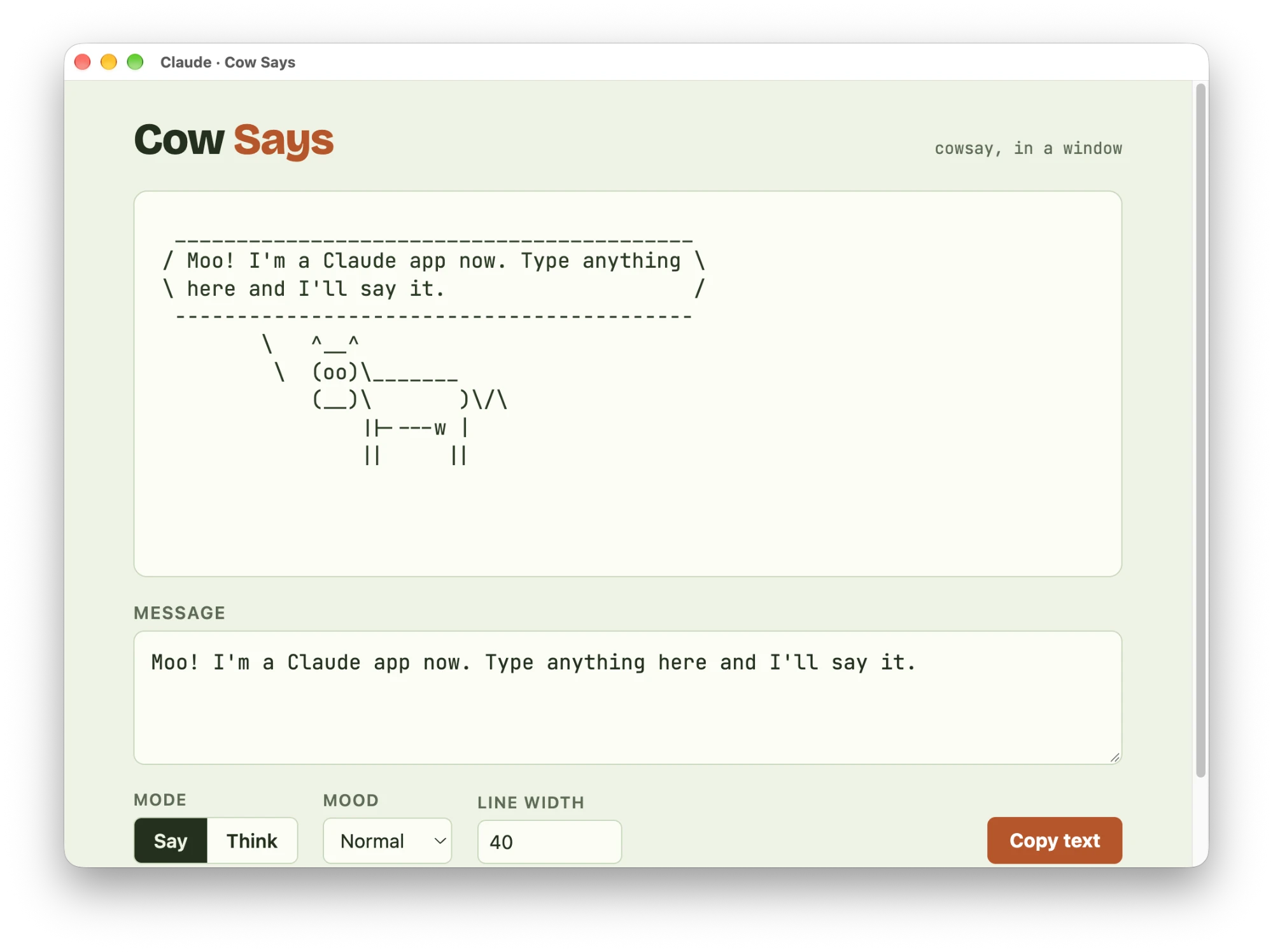
To change the app later, just give Claude another prompt. The installed app updates automatically, because its code stays in Claude (see "Implementation details for programmers" below).
When "Install as app" isn't in the menu
You might not see the Install as app menu item, for these reasons:
- Claude needs updating - Open
Claude > Check for Updatesand install version 6.28899.0 or later. - Artifacts are turned off - Turn on
ArtifactsinSettings > Capabilities. - The beta may not have reached your account - In the first days after launch, some people reported on Reddit that they didn't see it yet.
- Your organization has it off - On a Team or Enterprise plan, an owner controls "Install as app" (see below).
- The artifact can't be installed - Artifacts made from a template (Docs, Slides, and Sheets) and some older artifacts can't become apps.
"Install as app" isn't available on an iPhone, an iPad, the web, or Linux. In a web browser, Add to Dock only adds a shortcut to the page, without a Claude app's features.
If you are the administrator of a Team or Enterprise plan, you'll find three switches in Organization settings > Artifacts:
- "Install as app" - On by default on Team, off on Enterprise.
- App permissions - On by default on Team, off on Enterprise.
- Full access to the computer - Off by default on both.
Artifacts themselves must be turned on in Organization settings > Capabilities. A change can take about an hour to reach everyone in the organization.
Where Claude apps live
To keep a Claude app from getting lost, keep it in the Dock. While the app is open, right-click its icon in the Dock and choose Options > Keep in Dock.
If you close a running Claude app's window, the app is still on your Mac, even when its icon disappears from the Dock. It can be difficult to find because it isn't in the main Applications folder. Claude installs each app in a Claude Apps folder inside the Applications folder of your home directory (~/Applications/Claude Apps).
To open a Claude app again, use any of these:
- Spotlight - Press Command-Space (Spotlight search) and type the app's name.
- Finder - In Finder, press
Command+Shift+G, type~/Applications/Claude Apps, and double-click the app. - Claude - Open
File > Apps, which lists every Claude app you've installed. Select the app and clickOpen.
An app with a menu bar item keeps running after you close its window. To quit it, right-click its icon in the Dock and choose Quit, or press Command + Q while the app is in front.
Claude app permissions
A new Claude app can do only what a web page in a browser can do. For more, you must give permission, when it needs the feature rather than when you install it. Here are the five permission prompts:
- Notifications - Show alerts, such as a timer's "time is up".
- Keyboard shortcuts - Respond to keys you press while you use other apps.
- Float over other windows - Stay on top of your other windows. This also lets the app see where your pointer is.
- Menu bar item - Put an icon in the menu bar at the top of your screen.
- Full access to this computer - Run programs and change your files without asking. The next section explains when to allow it.
Each time the app changes, even from your own edits, Claude asks for permissions again. A "Don't allow" stays until you change it.
Claude shows a warning with the permission request when an app comes from outside your organization, or when Claude can't tell who made it. To change a permission later, click the app's name in the menu bar and choose Permissions. You can also open File > Apps > Permissions in Claude.
Full access to your Mac
Allowing full Mac access lets a Claude app run any program and read, change, or delete your files without asking you. Anthropic warns that you should allow it only if you trust everyone who wrote the app.
Claude limits which apps can ask for full access. On the free, Pro, Max, and Ultra plans, only apps you made yourself can ask. On Team and Enterprise, the app must be made in your organization. Turning off full access stops the programs the app started, but it doesn't undo changes the app already made.
I recommend starting without full access. Most simple apps, such as a dashboard or a timer, don't need it.
Share a Claude app
You can share a Claude app with other people using Claude for Mac or Windows, signed in to their own account. When you change the artifact, every installed copy changes too. As the owner, if you stop sharing the app, shared copies stop within about 20 minutes.
Uninstall a Claude app
- In Claude, open
File > Apps. - Select the app and click
Uninstall.
The app goes to the Trash. If you kept it in the Dock, remove its icon from the Dock yourself. The artifact stays in the Artifacts tab of Claude's sidebar, so you can install it again.
Implementation details for programmers
If you've written code, you may wonder what Claude actually implements.
Interestingly, the installed app you see in the Mac Dock is only a launcher. The app's code stays in your Claude account.
The app's code. Cow Says is one HTML file of about 230 lines: HTML for the layout, CSS for light and dark themes, and plain JavaScript. It uses no framework, no libraries, and no build step. For this app, Claude brought in two fonts from Google Fonts: a monospaced font for the cow, so the drawing lines up, and another for the title.
What gets installed. On a Mac, an application is a bundle, a folder that Finder shows as a single app. The bundle is 848 KB at ~/Applications/Claude Apps/Cow Says.app. It holds:
- Two small programs -
artifact-appandartifact-app-notifier. Each is a Mach-O executable (the Mac's format for programs) built for arm64 (Apple silicon). The notifier asks macOS to show the app's notifications. - An icon -
app.icns, generated by Claude for the application. Info.plist- The settings file used by any Mac app.- A code signature - An ad hoc signature, without a developer name. To give a real Mac app to other people outside the App Store, you need a Developer ID certificate, which requires a paid Apple Developer Program membership. The Claude app doesn't get an Apple notarization ticket stapled to the app.
How it runs. The settings in Info.plist indicate an Electron app shim. Electron is a framework for building desktop apps from web pages (Claude for Mac itself is an Electron application). An app shim is a small stand-in program that gives an app its own name, icon, and place in the Dock, but hands the real work to a host app. Here the host is Claude (ElectronAppShimHostPath is /Applications/Claude.app). When you launch the application, the shim starts or contacts Claude with the argument --artifact-app-launch. Claude then opens the artifact in a window of its own.
Digging into the implementation details shows the limits of Claude apps. A Claude app needs Claude running and signed in, because Claude hosts the code. The Claude app updates itself when the artifact changes, because its code lives in the artifact. You also can't give it to someone without Claude, because the .app holds no actual implementation. A real Mac app has real code inside its bundle.
OG programmers might call it a clever trick, or sleight of hand. But Claude apps are easy to build, so it is a useful trick.
Claude apps or Mac apps?
A Claude app is the right choice for simple tools you use yourself, or share with colleagues who use Claude. A real Mac app is a better choice when the software will be used by strangers, or must be a robust and reliable product. Here's how the two compare:
- Who can use it - A Claude app opens only for people signed in to Claude. A Mac app runs for anyone with a Mac.
- Selling it - You can't sell a Claude app. You can sell a Mac app.
- Claude and the internet - A Claude app needs Claude, online and signed in. A Mac app doesn't need Claude or an internet connection.
Vibe coding or spec-driven development
Like an eager contractor, Claude will jump into coding and deliver a Claude app without any plan, from the vaguest prompt. Sometimes that is fine. In software engineering, there's a place for a quick-and-dirty prototype or a "discovery sprint" that helps us decide what we need.
For ephemeral work, such as a single-task utility, a proof of concept, or a tool for a one-time event, vibe coding makes sense, with almost no upfront cost. However, with no written requirements, the code itself is the only definition of what the app should do. Code can break. Without tests, nothing catches a regression if a fix in one place breaks behavior elsewhere. As features are added or bugs are fixed, maintenance takes time and grows more costly. Use spec-driven development to shift the cost equation, with more time spent up front on planning.
AI coding tools have collapsed the cost of writing code, so a throwaway build is no longer an expensive risk. But the cost of maintaining code that people depend on hasn't fallen as far. If the app is mission-critical, has a large user base, or is expected to stay in service for years, spend more of the effort on planning and less on remediation.
If you don't have experience as a software developer, build a Claude app as a prototype and then ask Claude to write a specification based on what it built. If your plan includes it, switch to the Fable model (getting more critical reasoning) for a critique of the specification. If asked, Claude knows how to do solid software engineering, investigating and proposing requirements, edge cases, error handling, and acceptance criteria. Then ask Claude to build a standalone macOS app to implement the specification.
The article Spec-Driven Development for AI explains more. To prepare a Mac for building apps, see the roadmap to set up a Mac for software development.
Set up Claude on your Mac
To install the Claude desktop app with starter projects, skills, and connectors in one pass, use my free app "Set Up Your Mac for Claude Code". Claude will be ready to build your first Claude app.
Continue setting up your Mac
Visit the Mac Install Guide home page for step-by-step guides for every Mac user, from upgrading macOS to working with AI and writing code.