Dock Settings for a New Mac
Recommended Dock settings for a new Mac. How to move, shrink, and declutter the Dock in System Settings or from the terminal, for a new MacBook Air, MacBook Pro, iMac, Mac mini, Mac Studio, or Mac Pro.
The Dock is the row of app icons at the edge of your screen. It started as an easy way to keep frequently used apps close at hand, and now Apple uses it to show off the Mac's preinstalled apps, many of which you won't use often.
Setting up the Dock is one step in the Mac development setup guide. This article is part of a series on Mac Setup.
Tested on macOS 27 Golden Gate, September 2026.
Before you get started
Before you set up the Dock, get useful apps from Setapp (Bartender is good for tidying the menu bar). I've used Setapp for years, paying a low monthly subscription to get apps I need. They offer a Setapp free 7-day trial that I recommend. Check it out.
Open the Dock settings
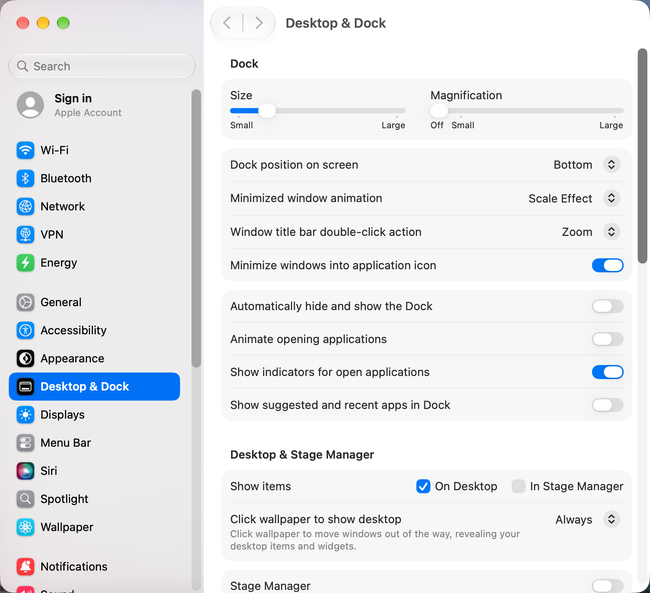
Click this shortcut to open System Settings > Desktop & Dock, or open Apple menu > System Settings and choose Desktop & Dock in the sidebar. The Dock settings are at the top of the pane.
Move the Dock to the side of the screen
The Dock sits at the bottom of the screen by default, which reduces the height available for web pages and documents. Most screens are wider than they are tall, so move the Dock to the side instead. Set Dock position on screen to Left or Right.
Adjust the Dock settings
I like a smaller Dock with magnification turned off. This way the Dock takes up little space, and it doesn't move when you hover over it. Many people turn on Automatically hide and show the Dock to gain screen space, but a Dock that appears and disappears can be distracting. Here are the least distracting settings:
Size: your preferenceMagnification: off (less distracting)Dock position on screen: Left or Right (more vertical space)Minimized window animation: Scale Effect (faster)Window title bar double-click action: your preference (see below)Minimize windows into application icon: off (less distracting)Automatically hide and show the Dock: off (less distracting)Animate opening applications: off (less distracting)Show indicators for open applications: on (useful)Show suggested and recent apps in Dock: off (less clutter)
Remove clutter from the Dock
You can remove every app from the Dock except the Finder and the Trash, which are permanent. This works well if you open apps with Spotlight search (press Command + Space and type the app name) or with the Apps view, which replaced Launchpad. See Where Is Launchpad in macOS 27.
I use the Dock for frequently used apps. I start by removing everything except the Finder and the Trash, then add apps as I use them.
To remove an app from the Dock, drag it off the Dock. Or right-click its icon and choose Options > Remove from Dock.
To remove all apps at once, open a terminal application. This command empties the list of apps the Dock keeps, and killall Dock restarts the Dock so the change appears:
$ defaults write com.apple.dock persistent-apps -array
$ killall Dock
When you open an app, its icon appears in the Dock while the app runs. To keep it there, right-click the icon and choose Options > Keep in Dock.
In macOS 27, an app that keeps running in the background after you quit also stays in the Dock, marked with a gray indicator. Right-click its icon and choose Stop Running in Background. If you stop the same app repeatedly, macOS offers to keep it from running in the background.
Add folders to the Dock
The Downloads folder is in the Dock by default. If you open another folder often, drag it from the Finder to the Dock, next to the divider line that separates apps from folders.
Right-click a folder in the Dock to show it as a folder or a stack, and to choose whether it opens as a grid or a list. Folders in the Dock keep your desktop free of everything except files that need attention.
Set the title bar double-click action
You can choose what happens when you double-click a window's title bar. The choices are Fill (enlarge the window to fill the screen), Zoom, Minimize, and No Action.
Desktop & Dock>Window title bar double-click action>Minimize
Minimize is a quick way to clear windows from the desktop by moving them to the Dock.
Stop a wallpaper click from hiding your windows
By default, clicking the desktop wallpaper moves every window out of the way to reveal the desktop. Many people find this annoying, because a stray click makes all their windows disappear. In the Desktop & Stage Manager section, change Click wallpaper to show desktop from Always to Only in Stage Manager.
Desktop & Dock>Desktop & Stage Manager>Click wallpaper to show desktop>Only in Stage Manager
Set up Hot Corners
A Hot Corner runs an action when you move the pointer into a corner of the screen. The setting is hard to find: scroll to the very bottom of the Desktop & Dock pane and click the Hot Corners button.
A Hot Corner can be annoying if you trigger it by accident. Still, a few are very useful:
- Lock Screen: I set a corner to lock the screen, so I can keep the display awake and lock the Mac when I leave my desk. If your Mac has Touch ID, pressing the Touch ID button also locks the screen.
- Apps: opens the Apps view, which replaced Launchpad, if you like to browse your apps instead of searching with Spotlight.
- Mission Control: shows all open windows, if you switch between apps that way instead of clicking windows or Dock icons.
Change Dock settings from the terminal
You can change these settings and a few hidden ones with defaults write commands in a terminal application. Each command changes one Dock preference, and killall Dock at the end restarts the Dock so the changes take effect. First, open a terminal application. Run the commands you want, one at a time.
Thank you to Mathias Bynens for his sensible macOS defaults, where you can find many more macOS settings.
# Enable highlight hover effect for the grid view of a stack
$ defaults write com.apple.dock mouse-over-hilite-stack -bool true

# Set the icon size of Dock items to 36 pixels
$ defaults write com.apple.dock tilesize -int 36

# Use the Scale Effect to minimize windows
$ defaults write com.apple.dock mineffect -string "scale"

# Minimize windows into their app's icon
$ defaults write com.apple.dock minimize-to-application -bool true

# Enable spring loading for all Dock items
$ defaults write com.apple.dock enable-spring-load-actions-on-all-items -bool true

# Show indicator lights for open apps
$ defaults write com.apple.dock show-process-indicators -bool true

# Don't animate opening apps from the Dock
$ defaults write com.apple.dock launchanim -bool false

# Speed up Mission Control animations
$ defaults write com.apple.dock expose-animation-duration -float 0.1

# Don't group windows by app in Mission Control
$ defaults write com.apple.dock expose-group-by-app -bool false

# Don't automatically rearrange Spaces based on most recent use
$ defaults write com.apple.dock mru-spaces -bool false

# Remove the delay before the hidden Dock appears
$ defaults write com.apple.dock autohide-delay -float 0

# Remove the animation when hiding and showing the Dock
$ defaults write com.apple.dock autohide-time-modifier -float 0

# Automatically hide and show the Dock
$ defaults write com.apple.dock autohide -bool true

# Make Dock icons of hidden apps translucent
$ defaults write com.apple.dock showhidden -bool true

# Don't show suggested and recent apps in the Dock
$ defaults write com.apple.dock show-recents -bool false

# Add a spacer to the apps side of the Dock
$ defaults write com.apple.dock persistent-apps -array-add '{tile-data={}; tile-type="spacer-tile";}'

# Add a spacer to the Trash side of the Dock
$ defaults write com.apple.dock persistent-others -array-add '{tile-data={}; tile-type="spacer-tile";}'
After changing Dock settings, restart the Dock:
$ killall Dock
To undo a setting, run defaults delete com.apple.dock followed by the setting's name, such as defaults delete com.apple.dock autohide, then restart the Dock.
Continue setting up your Mac
Don't miss the full visual roadmap and checklist that shows how to set up a Mac for software development, with all the essential tools and settings you might not yet know about.