MacOS Beta
MacOS beta. How to install the macOS public beta or developer beta, the beta release dates, and what to expect from the next macOS version.
The next macOS beta will be released at the Worldwide Developers Conference (WWDC) in 2027.
Now that the macOS 27 Golden Gate public release is out, there is no reason to install the macOS 27 Golden Gate beta; this article is preserved for future revisions.
Apple announced macOS 27 Golden Gate at its Worldwide Developers Conference (WWDC) on June 8, 2026. A developer beta arrived the same day, the public beta arrived on July 13, 2026, and Apple seeded new betas roughly every two weeks since. The beta let testers see the next macOS version months ahead of the final release on September 14, 2026. For a look at the macOS latest version, see macOS 27 Golden Gate.
What is a macOS beta
A beta is a pre-release version Apple shares for testing before the final release. The macOS beta lets developers test their apps and lets curious users try new features early. Betas are not finished software, so expect bugs and rough edges.
There are two beta tracks. The developer beta comes first, on the day of the WWDC keynote. The public beta follows a few weeks later and is usually more stable. Both are free.
macOS 27 beta release dates
Apple follows the same yearly schedule for each macOS release. Here are the key dates for the macOS 27 Golden Gate beta:
- Developer beta 1: June 8, 2026, the day of the WWDC keynote
- Developer beta 2: June 22, 2026
- Developer beta 3: July 6, 2026
- Public beta 1: July 13, 2026
- Developer beta 4: July 20, 2026
- Public beta 2: July 22, 2026
- Developer beta 5: August 10, 2026
- Public beta 3: August 11, 2026
- Developer beta 6: August 17, 2026
- Developer beta 7: August 24, 2026, build 26A5421a
- Developer beta 8: August 31, 2026, build 26A5425a (the last developer beta)
- Public beta 6: August 31, 2026
- Release candidate: September 9, 2026
- Final public release: Monday, September 14, 2026
Apple confirmed the release date at its September 9, 2026 event: macOS 27 Golden Gate shipped on Monday, September 14, 2026. Most people should simply upgrade macOS rather than install a beta now.
Decide whether to install the macOS beta
Install the macOS beta only if you have a spare Mac, or if you are comfortable booting from a separate volume or an external drive. Beta software can have bugs that disrupt your work, so always keep a stable Mac available.
The macOS beta runs only on Apple Silicon Macs. You cannot install it on an Intel Mac. If you have an Intel Mac, your latest option is MacOS Tahoe 26, the final version that supports Intel hardware.
New features in the macOS beta
The first developer beta does not include every feature. Apple adds and changes features as new betas are released through the summer. Through the developer betas and the September release candidate, testers reported strong performance and stability.
Where to install the macOS beta
Your best option is to install the macOS beta on a spare Mac with Apple Silicon. Installing on a spare Mac lets you try the new version without risking your daily work.
If you do not have a spare Mac, you can install the beta on a separate volume on your main Mac, or on an external drive. You then hold the power button at startup to choose which system to boot. The sections below cover all three methods.
Check your macOS version first
Before you install the macOS beta, confirm your Mac runs the current macOS version.
Confirm your Mac is compatible
The macOS beta requires a Mac with Apple Silicon. Apple lists supported models on its macOS site. To check your model against the list, see the article:
Back up your Mac
If you install the beta on a new Mac with no files, you do not need a backup. The same is true if you keep all your important files in the cloud.
Otherwise, back up your Mac before you install the macOS beta. You can use Time Machine or a cloud backup service such as Backblaze or Carbonite.
The automated software update performs an "over the top" installation, which keeps your files in place. However, it is always wise to have a backup in case something goes wrong.
Sign up for the public beta or developer beta
The public beta and the developer beta are not the same. The developer beta is released first, and the public beta follows a few weeks later. The public beta is more stable and has fewer bugs.
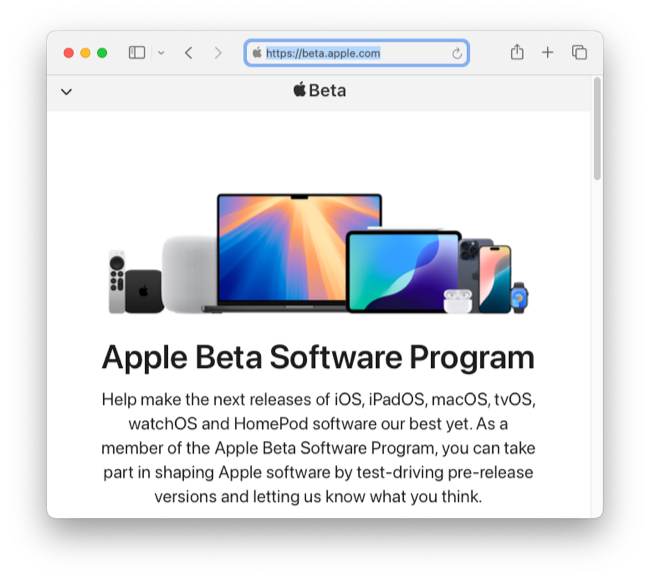
The public beta is available after the WWDC conference. It is free and open to anyone who wants to try the new macOS version. Sign up for the public beta on the Apple Beta Software Program website. After you sign up with your Apple ID, your System Settings will show that beta updates are available.
The developer program is for software developers who want to test their apps on the new macOS version. Anyone can sign in to the Apple Developer Program with an Apple ID (click "Account" in the navbar). Full enrollment costs $99 per year, but you can get the developer beta without enrolling, as long as you sign in with your Apple ID.
Install the macOS beta on a spare Mac
Here is how to install the macOS beta on a spare Mac running macOS Tahoe 26.
- Click this shortcut to skip to step 4.
- Or, open
System Settingsand go toGeneralandSoftware Update. - Click the "circle I" info button next to
Beta Updates. - Set
Beta UpdatestomacOS Public Beta. - If you prefer a developer beta, select that instead.
- Click "Done" and your Mac will check for software updates.
- After the check, the upgrade name appears with an "Upgrade Now" button.
- Connect to power, because software updates require at least 20% battery.
- Enter your password to start the download. With a fast connection, expect about 30 minutes, then about 15 minutes to prepare. If the download is far slower than that, see "Speed up a slow beta download" below for a much faster method.
- Your Mac restarts to install. Expect about 15 minutes with several automatic restarts.
- At the login screen, enter your Mac password and Apple ID, then step through the setup screens.
- The desktop appears with the Feedback Assistant open. Use it to report any bugs you find.
- Check
About This Macto confirm you are running the macOS beta.
If you do not see the macOS Public Beta option, sign up for the Apple Beta Software Program. After you sign up with your Apple ID, your System Settings will show that beta updates are available. Alternatively, sign in to the Apple Developer Program with your Apple ID (click "Account" in the navbar), then check again.
Speed up a slow beta download
Sometimes the macOS beta download in Software Update is very slow, even on a fast internet connection. This is a limit of the Software Update download tool, not your connection or your Mac. Software Update opens only a few connections to Apple's servers, so it often cannot use all your bandwidth, especially when you are far from those servers.
There is a faster way, and it is the preferred method when Software Update crawls. Download the full installer package, InstallAssistant.pkg, in a web browser, then run it. A browser uses your bandwidth efficiently, and the download resumes on its own if it stops.
A real test shows the gap. On a 300 Mbps connection, Software Update pulled a 17 GB beta at about 9 Mbps and estimated 4 hours. The same beta, downloaded as InstallAssistant.pkg in a browser, ran at about 160 Mbps and finished in about 14 minutes. That is roughly 18 times faster, on the same connection at the same time.
Confirm your connection is not the problem
Before you blame your internet connection, test it. macOS includes a built-in tool that measures your download speed to Apple's own servers, the same network that hosts the beta. Open a terminal application and run:
$ networkQuality -v
The command reports a download capacity in Mbps. If that number is high, for example 100 Mbps or more, while Software Update crawls, your connection is fine and the download tool is the bottleneck. In the test above, networkQuality reported about 387 Mbps while Software Update managed only 9 Mbps.
Download the installer in a browser
- Open one of these sites, which link to Apple's own signed installer files:
- Download the latest macOS beta
InstallAssistant.pkg. The file is large (about 17 GB), so watch the browser's download speed and confirm it beats Software Update. - In System Settings, cancel the slow Software Update download. You no longer need it.
- Double-click the downloaded
InstallAssistant.pkg. It does not upgrade your Mac. It places the full installer app, "Install macOS Beta", in your Applications folder, so it finishes almost instantly.
You do not need to enroll in the beta program to run this installer, because the package is the complete beta. It is the same InstallAssistant.pkg used for the external drive and separate volume installs below, so you can reuse it for those methods too.
Run the installer
Running the .pkg only stages the installer app. To actually upgrade, open that app and let it run.
-
In your Applications folder, open "Install macOS Beta".
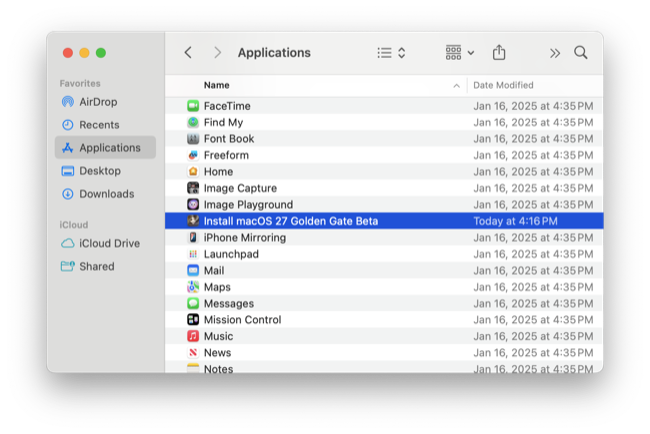
-
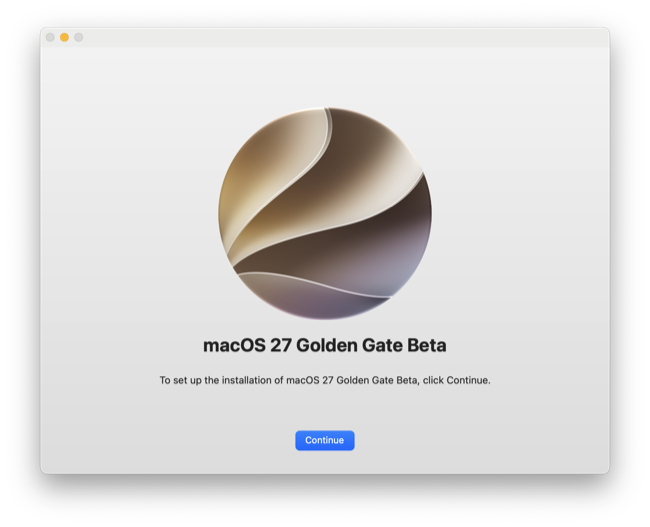
At the welcome screen, click "Continue" to set up the installation.
-
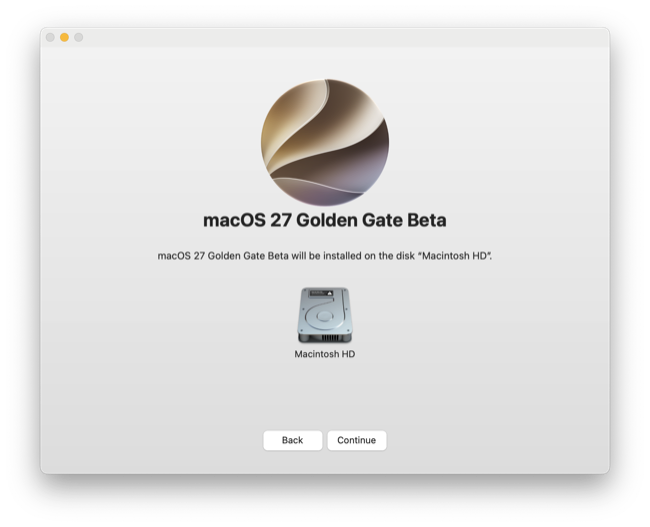
Choose the disk to install on. On a spare Mac this is the internal drive, usually "Macintosh HD". Click "Continue".
-
Enter your administrator password to begin. The installation takes about an hour, and your Mac restarts several times on its own. Keep it plugged into power and do not interrupt it.
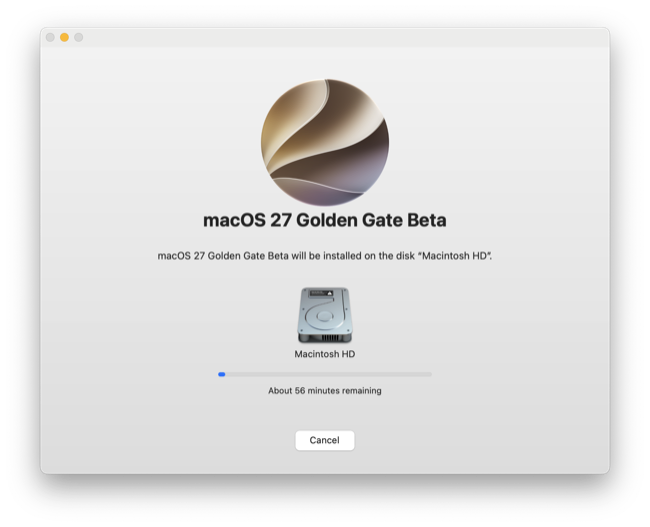
-
When it finishes, your Mac boots into the beta and steps you through the setup screens. Sign in with your Apple ID.
-
To confirm the version, open the Apple menu and choose
About This Mac. It shows macOS.
If the install looks stuck, do not worry. The progress bar and the time estimate are unreliable, and the installer often sits at one point for many minutes, then jumps ahead. After this stage, your Mac restarts and finishes on a dark screen with an Apple logo and its own progress bar, which can also look frozen. Keep the Mac plugged into power and wait. Give it at least an hour of no movement before you assume it has failed.
To confirm it is still working, open Activity Monitor from the Utilities folder and click the Disk tab. Watch the Data written total at the bottom of the window. If it keeps climbing, even slowly and in bursts, the install is running, so leave it alone. Do not keep force-restarting the Mac, because each restart makes the installer read the whole beta again from the start and lose its progress.
If the Mac is truly frozen, with no progress for a long time and a pointer that will not move, and this is a spare Mac, you can force a restart. Hold the power button for about 10 seconds until the Mac turns off, then press it again to start up. On Apple Silicon the install is resumable, so it usually continues on its own or lets you open the installer again.
Install the macOS beta on an external drive
Not many users own an external drive now that cloud storage is common. However, if you have one, you can install the macOS beta on it. You must format the drive first, which erases any files on it. Use a fast SSD with a USB-C or Thunderbolt connection for a usable system. A USB thumb drive works too, but you need at least 32 GB of space.
Format the external drive
- Connect the external drive to your Mac.
- Search in Spotlight and open
Disk Utility. - Select the external drive in the left sidebar.
- Click
Eraseto reformat the drive. - Name the drive
macOSor whatever you like. - Choose
APFSas the format, which Apple Silicon requires to boot. - Choose
GUID Partition Mapas the scheme. - Click
Eraseto format the drive. - Close
Disk Utilitywhen the formatting is done.
Get the macOS beta installer
Apple offers the macOS developer beta on the Apple Developer downloads page. All you need is an Apple ID to sign in. However, this is an *.ipsw file, which only restores an Apple Silicon Mac from another Mac. To install on an external drive or a separate volume, you need an InstallAssistant.pkg file instead.
Several sites mirror Apple's *.pkg installers for macOS betas:
These are Apple's own signed installer files, hosted on Apple's servers. Download the latest InstallAssistant.pkg. These files are large (14 GB or more), so a download can take more than 30 minutes on a fast connection.
Install on the external drive
Double-click the InstallAssistant.pkg file to start. Click "Change Install Location" and, at the "Destination Select" step, choose the external drive.
Install the macOS beta on a separate volume
You can also install the macOS beta on a separate volume of your main drive. You might hear this called a "dual boot" setup. Apple's APFS file system uses volumes, which work like flexible partitions. You end up with one volume for macOS Tahoe 26 and one for the macOS beta, and you pick which to boot with the Startup Manager.
Create a new volume
- Search in Spotlight and open
Disk Utility. - Select the internal drive in the left sidebar.
- Click the
+button to add a new volume (or "Edit" then "Add APFS Volume"). - Name the volume
macOS betaor whatever you like. - Choose
APFSas the format. - Click
Addto create the volume. - Click "Done" and close
Disk Utility.
Install on the new volume
Get the InstallAssistant.pkg file as described above. Double-click it to start. Click "Change Install Location" and, at the "Destination Select" step, choose the volume you created.
Use the Startup Manager
On an Apple Silicon Mac, hold down the power button while starting up to open the Startup Manager. "Loading startup options" appears. You can boot from the internal drive, an external drive, a separate volume, or "Options."
Select the external drive or volume to boot the macOS beta. You can set a default in System Settings then Startup Disk.
Halt macOS beta updates
Click this shortcut to open System Settings then General then Software Update. Click the "circle I" info button next to Beta Updates and set Beta Updates to Off. This stops the beta updates.
This step matters if you no longer want the beta. Without it, your Mac keeps updating to each new beta version.
Return to macOS Tahoe 26
If you run the beta on an external drive or a separate volume, your Mac still has macOS Tahoe 26 on the internal drive. Reformat the external drive or delete the volume when you are done with the beta.
If you installed the beta on a spare Mac, you can return to the stable release by reinstalling macOS Tahoe 26. Apple no longer offers macOS Tahoe in the Mac App Store. Instead, download the Tahoe InstallAssistant.pkg full installer in your browser and run it, as described in Download macOS. Because macOS will not install an older version over a newer one, erase the Mac first or install from a bootable USB drive, as described in Create a Bootable USB Installer for macOS.
Continue setting up your Mac
Don't miss the full visual roadmap and checklist that shows how to set up a Mac for software development, with all the essential tools and settings you might not yet know about.