.zshrc or .zprofile
Comparing .zshrc or .zprofile zsh configuration files. How to set PATH and aliases. Configuring macOS Zsh shell.
Zsh (the Z shell) is a program that runs in a terminal application that interprets Unix commands and gives us the command line interface. ~/.zshrc and ~/.zprofile are hidden files (beginning with a .) in the user's home directory (abbreviated as ~) that configure the Zsh shell.
There are actually four Zsh configuration startup files and differences among the files are not obvious. Particularly, the ~/.zshrc and ~/.zprofile files appear to be identical. Here you'll learn the difference and discover a simple guideline for shell configuration. You may want to read more about Shell Configuration and setting the Mac PATH. Also, you'll need terminal and editor applications for shell configuration. Apple includes the Mac terminal application, but most developers install a third-party terminal application for a better user experience.
Choosing the right configuration file is one step in setting up your Mac for development. See the guide to set up a Mac for development.
Before you get started
I recommend using our free app to set up your zsh configuration files. It is a FREE Mac app that installs the Command Line Tools, configures your shell startup files, installs Homebrew and Git, and verifies everything works. It does everything this guide covers, but easier and faster. Here are all the details about the app before you download. Then:
If you're configuring the shell yourself, here is a guide.
Why configure the shell
You'll need to configure the shell when setting up a development environment. You may want aliases for hard-to-remember commands and a custom prompt that can display the directory you're in, among other things. More important are critical environment variables that make programs available or alter shell behavior. The EDITOR environment variable, for example, sets your preferred text editor. And often you must set the PATH environment variable so the operating system finds programming languages or software utilities you've installed.
Zsh configuration files
Zsh configuration files are kept in the user's home directory and are named with a dot as the first character to keep them hidden by default. In the macOS Finder (the file browser), you can enter Command + Shift + . to show hidden files. For other ways to see them, including from the terminal, see Show Hidden Files on Mac.
Zsh recognizes four different configuration files in the user's home directory: ~/.zshenv, ~/.zprofile, ~/.zshrc, and ~/.zlogin. Differences among these files are not obvious, especially between zprofile and zshrc files. Here you'll learn how to use each of these files.
Just a note about an obscure gotcha: Zsh will look somewhere other than your home directory if the ZDOTDIR environment variable is set. That is uncommon, but software language installers such as rustup and uv will find it and change configuration accordingly, so you might need to be aware of it.
Why these files do not exist on a new Mac
A brand new Mac is not set up for computer programming and the ~/.zshenv, ~/.zprofile, ~/.zshrc, and ~/.zlogin files do not exist. When you set up your development environment, you'll need to create these files yourself in your home directory. Don't expect to find them if your Mac is new.
The easy rule
The full sequence of shell configuration is complicated, because it accommodates both automated processes ("non-interactive") and remote systems.
One key fact to remember is that macOS doesn't use the same shell configuration sequence as Linux. Thus, rules learned for Linux don't apply to macOS. Here are the simplest rules to remember:
~/.zprofileis the configuration file for setting the$PATHvariable that macOS uses to locate installed programs. When you install a new command line tool, you'll need to configure~/.zprofile.~/.zshrcis the configuration file for setting shell options and aliases.
Why is there a line in a file I never created?
Many developers first open these files because a tool put something there. Rust's rustup and Python's uv both write to ~/.zshenv by default, and installers frequently add a line to ~/.zshrc. You may find a line like one of these:
. "$HOME/.local/bin/env"(added by the uv installer). "$HOME/.cargo/env"(added by rustup)
These lines are not mistakes and you do not need to remove them. Each one runs a small script that adds a directory to your PATH only if it is not already there, so it is safe to leave alone.
.zshenv or .zprofile
There is a gotcha on macOS, explained in detail below: a PATH entry set in ~/.zshenv will work, but has lower priority. If the wrong version of a program runs, that is usually the reason. Moving the line to ~/.zprofile sets a higher priority. That's why most Mac developers will prefer ~/.zprofile to ~/.zshenv, even if a guide written for Linux says to use ~/.zshenv.
The full picture
Here is a full picture of the Zsh configuration files and their order of execution, followed by an explanation. Many experienced developers have never looked at these details, so if you learn this, you'll have a better understanding than most of your peers.
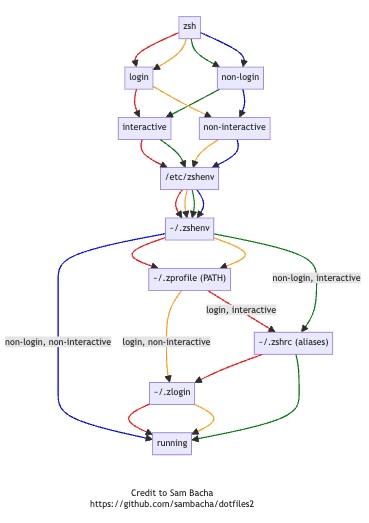
Interactive vs. non-interactive and login vs. non-login
Shell sessions can be classified as interactive or non-interactive, login or non-login.
- On macOS, each new terminal session is treated as a login shell, so opening any terminal window starts an interactive login session. Also, a system administrator who connects to a remote server via SSH initiates an interactive login session.
- If a terminal window is already open and you run the command
zshto start a subshell, it will be interactive and non-login. Beginners seldom use subshells. - Automated shell scripts run without login or any user prompting. These are non-interactive and non-login.
- Few people ever encounter a non-interactive login shell session. It requires starting a script with a special flag or piping output of a command into an ssh connection.
How Zsh configuration files get sourced
Different kinds of shell sessions necessitate different shell configurations. Here's how the configuration files are loaded and applied ("sourced"):
~/.zshenv- This is loaded universally for all types of shell sessions (interactive or non-interactive, login or non-login). It is the only configuration file that gets loaded for non-interactive and non-login scripts like cron jobs. However, macOS reorders thePATHafter this file is loaded, soPATHsettings made here lose priority in login shells.~/.zprofile- Loaded for login shells (both interactive and the rare non-interactive sessions). MacOS uses this to set up the shell for any new terminal window. Subshells started from within the terminal window inherit settings but don't load~/.zprofileagain.~/.zshrc- Loaded only for interactive shell sessions. It is loaded whenever you open a new terminal window or launch a subshell from a terminal window.~/.zlogin- Only used for login shell configurations, loaded last, after.zprofileand~/.zshrc. Loaded whenever you open a new terminal window.
Best uses for each configuration file
Here's how you can use each configuration file:
~/.zshenv- It is universally loaded, so you could use it to configure the shell for automated processes like cron jobs. However, it is best to explicitly set up environmental variables for automated processes in scripts and leave nothing to chance. Few developers write this file by hand, but you may still find one on your Mac, because installers such asrustupanduvcreate it. They choose~/.zshenvbecause it is the only zsh file loaded for every kind of session, including the non-interactive shells that build tools and editors use. That reasoning is sound in general, but on macOS it comes at the cost ofPATHpriority, described next.~/.zprofile- Homebrew recommends setting thePATHvariable here. There's a reasonPATHshould be set in~/.zprofileand not the universal~/.zshenvfile: macOS runs a utilitypath_helper(from/etc/zprofile) that rebuilds thePATHorder after~/.zshenvis loaded and before~/.zprofileis loaded. A directory you add in~/.zshenvis still on thePATH, butpath_helpermoves the system directories in front of it. Add the same directory in~/.zprofileand it stays first. This is why a program can be installed correctly, appear in yourPATH, and still lose to an older version.~/.zshrc- This is the configuration file that most developers use. Use it to set aliases and a custom prompt for the terminal window. You can also use it to set thePATH(which many people do) but~/.zprofileis preferred.~/.zlogin- Seldom used. Only important in managing the order of initialization tasks for login shells in complex environments. It can be used to display messages or system data.
Guidelines for use of ~/.zprofile and ~/.zshrc
Here's the current recommended practice:
- Use
~/.zprofileto set thePATHandEDITORenvironment variables. - Use
~/.zshrcfor aliases and a custom prompt, tweaking the appearance and behavior of the terminal. - If you write automated shell scripts, check and set environment variables in the script.
The ~/.zprofile file was originally intended for time-consuming tasks at login that should not be repeated whenever a new shell was initiated. MacOS now launches any new terminal window as a login shell, loading both ~/.zprofile and ~/.zshrc files without concern for the shell startup time.
The key advantage of the ~/.zprofile file (versus ~/.zshenv) is that it sets environment variables such as PATH without override from macOS. The ~/.zshrc file could be used for the same but, by convention and design, is intended for customizing the look and feel of the interactive terminal.
What's next
For instructions to configure the shell, see Shell Configuration and setting the Mac PATH.
Continue setting up your Mac
Don't miss the full visual roadmap and checklist that shows how to set up a Mac for software development, with all the essential tools and settings you might not yet know about.